 MyMP3 Converter
How to make a ringtone from an MP3 on iPhone
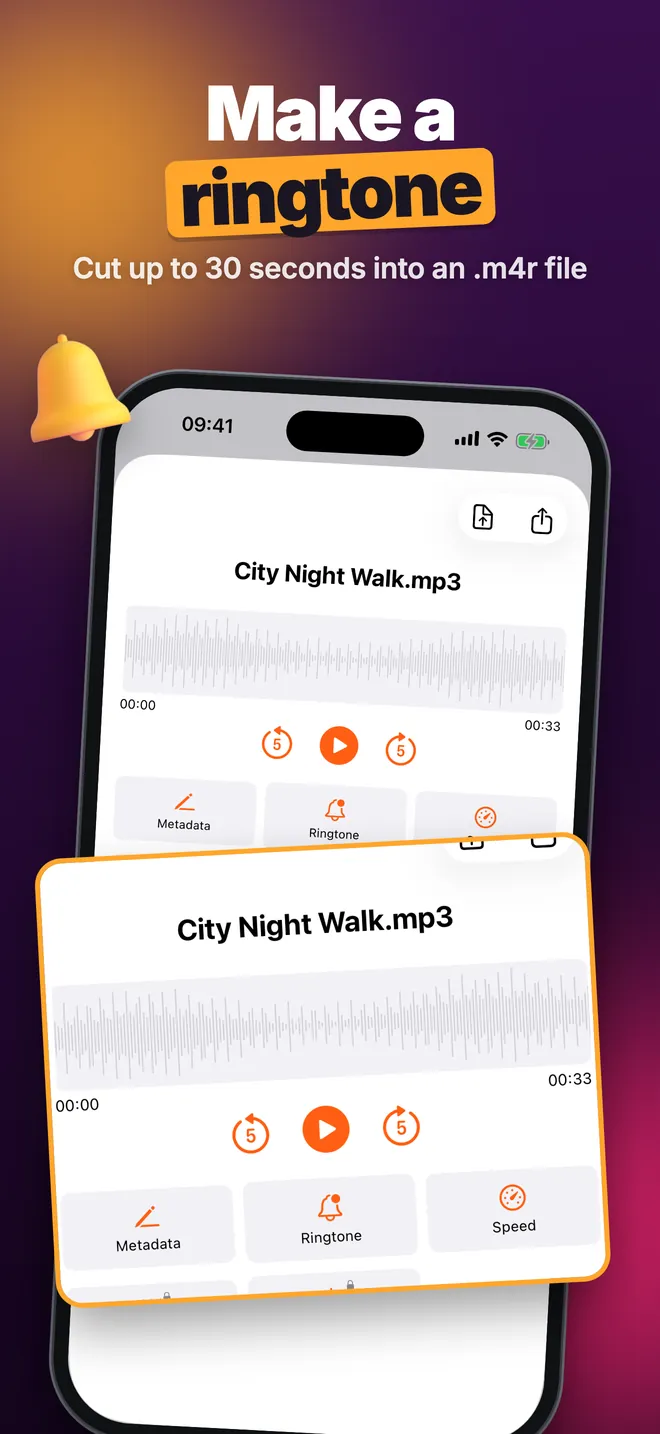
Import the MP3 from Files with + on the Videos tab of MyMP3 Converter, convert it to M4A, open it in Audio, tap Ringtone and choose the 30 seconds you want. Export with Export as Ringtone (.m4r) and install the file with GarageBand, because iOS does not let any app set a ringtone for you.
 ★ 4.7 (32)
Does it work with any song?
It works with audio that exists as a file on your iPhone: an MP3 you bought, a recording of your own, a clip from a longer audio file. Songs you only stream in Apple Music or Spotify are not files you can open, so they will not work. A ringtone can be 30 seconds at most.
Step 1: bring the MP3 into the app
- Put the MP3 in Files (On My iPhone or iCloud Drive).
- In MyMP3 Converter, tap + at the top right of the Videos tab and pick the MP3.
- Under Select format choose M4A and tap Convert to Audio. The 30-second cut comes in the next step.
Step 2: pick the chorus and export
- Go to the Audio tab and tap the converted file.
- Tap Ringtone. Ringtone Creator shows the waveform.
- Drag the start and end handles around the part you want, for example the chorus. The window never goes beyond 30 seconds.
- Tap Export as Ringtone (.m4r) and save the file to Files, in On My iPhone.
Step 3: install it with GarageBand
- Open GarageBand and start a new project with the Audio Recorder.
- Switch to the tracks view, tap the loop browser icon, choose Files and drag the .m4r onto the track.
- Go back to My Songs, press and hold the project, tap Share and choose Ringtone.
- Name it, tap Export, then choose Use sound as. You can change it later in iPhone Settings under Sounds & Haptics.
Free vs Pro
- Free: 1 ringtone per day.
- Pro: ringtones without the daily limit.
- The ringtone is not added to the app's Audio list; the .m4r stays where you saved it in Files.
Tips and common mistakes
- Start the clip just before the part you want to hear, otherwise the ringtone begins with silence.
- Choose a section that ends cleanly, because the ringtone stops at 30 seconds at most.
- Only use music you are allowed to use, and do not share the file.
Questions and answers
Can I use a song from Spotify or Apple Music?
No. Streamed songs are not files on your iPhone. The app works with audio and video files from Files or Photos.
How long can the ringtone be?
30 seconds at most. Ringtone Creator limits the window to that length.
Do I have to convert the MP3 first?
Yes, once to M4A. That puts it in the Audio tab, where you open Ringtone.
Does the app set the ringtone automatically?
No. It makes the .m4r, but you activate it with GarageBand because iOS does not let apps do it.
More MyMP3 Converter guides
- How to convert a video to MP3 on iPhone (and keep only the part you need)
- How to make a ringtone on iPhone from a video
- How to merge two audio files on iPhone
- How to slow down or speed up an audio file on iPhone
- How to edit song title, artist and cover art on iPhone
- How do you extract audio from a screen recording on iPhone?
- All questions about MyMP3 Converter
- Back to MyMP3 Converter